The problem nobody wanted to solve
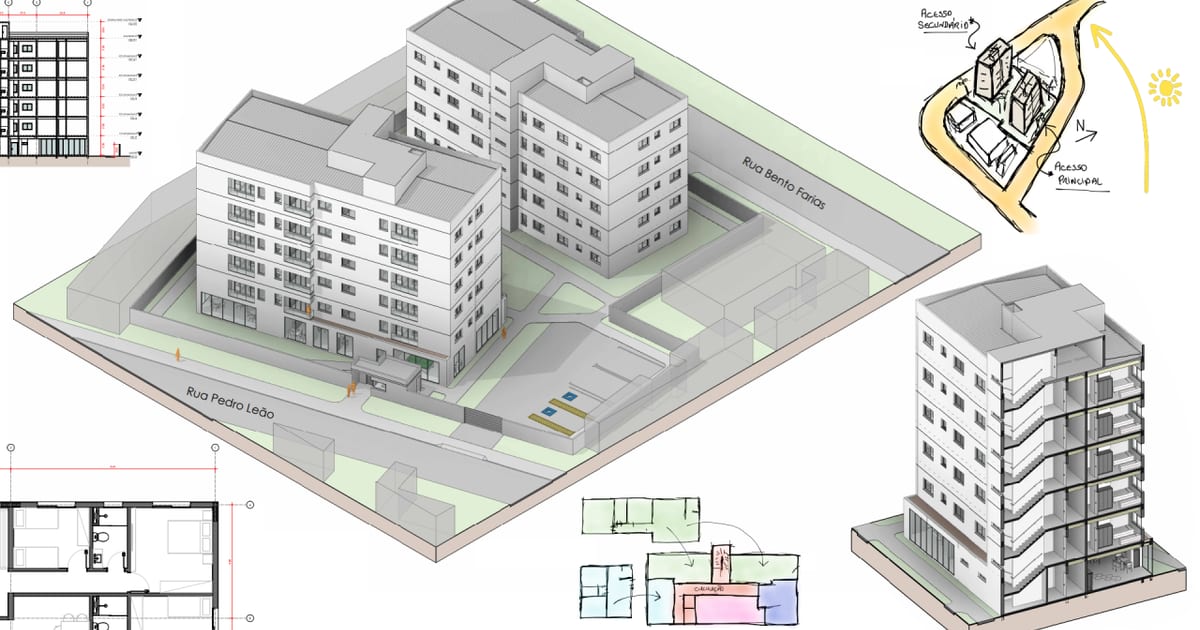
If you have ever worked with Revit, you know how frustrating it can be to join or cut elements manually. On large projects it becomes repetitive, error-prone and extremely time-consuming work. As an architecture student and software engineer, I ran into this problem while working on a project for my 6th semester: a multifamily housing building.
My project required joining the elements to estimate materials correctly and improve the presentation visually, since the lack of those joins causes z-fighting (an artifact that happens when two polygons overlap at the same location on the Z axis, resulting in blurry, noisy and flickering images). Early in the project I tested a few Revit extensions, but most were either incompatible with the version I was using (2024), or just a simplified version that still required manual correction (handling only the order of cuts, not the priorities).
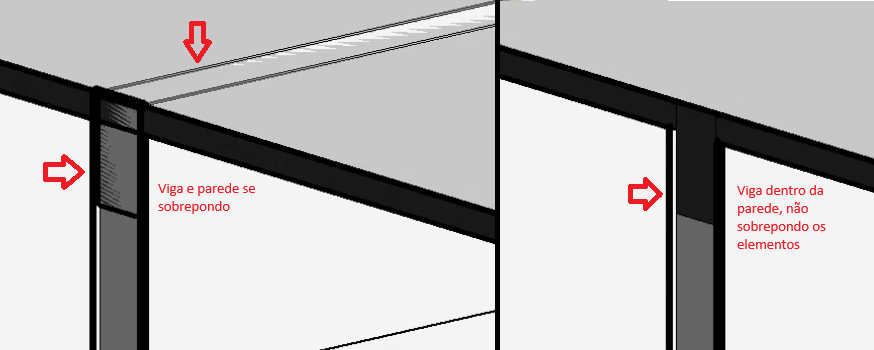
While developing the work, to avoid errors in the material estimates and improve the presentation, I started joining the elements one by one — an extremely tedious and slow process. Eventually I stopped and asked myself: “Why am I doing this manually?”. That is when I decided to act.
Automation: the solution Revit needed
Faced with this challenge, I built a plugin called EasyJoin that automates joining elements in Revit. The idea was simple: cut the time spent on this task and improve the user experience. With a few clicks, my software does in seconds what used to take minutes or even hours, depending on the size of the project.
How does it work?
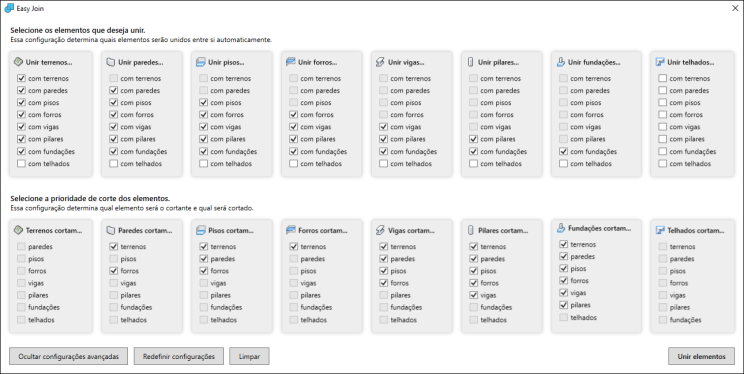
Easy Join identifies, through the selected configuration, the elements that need to be joined and performs the operation intelligently — ensuring precision and avoiding the common mistakes of the manual process, such as which element should take priority over the other. The result? Less time lost, more efficiency and a much smoother experience.
My idea was to provide automatic joining between elements, but with a special touch: there would be a way to specify which element would be cut and which would be the “cutter”. For example: a column should cut the wall, but the wall should cut the ceiling. And the slab? Does it cut the beam, or does the beam cut the slab? It doesn’t matter — you define that in your project however you want or need!
The impact on productivity
Since creating Easy Join, I realized this simple automation has a huge impact — even on smaller projects that don’t have that many elements. Either way, the time saved can go to tasks that really matter, like developing the project itself and detailing, instead of repetitive, mechanical actions.
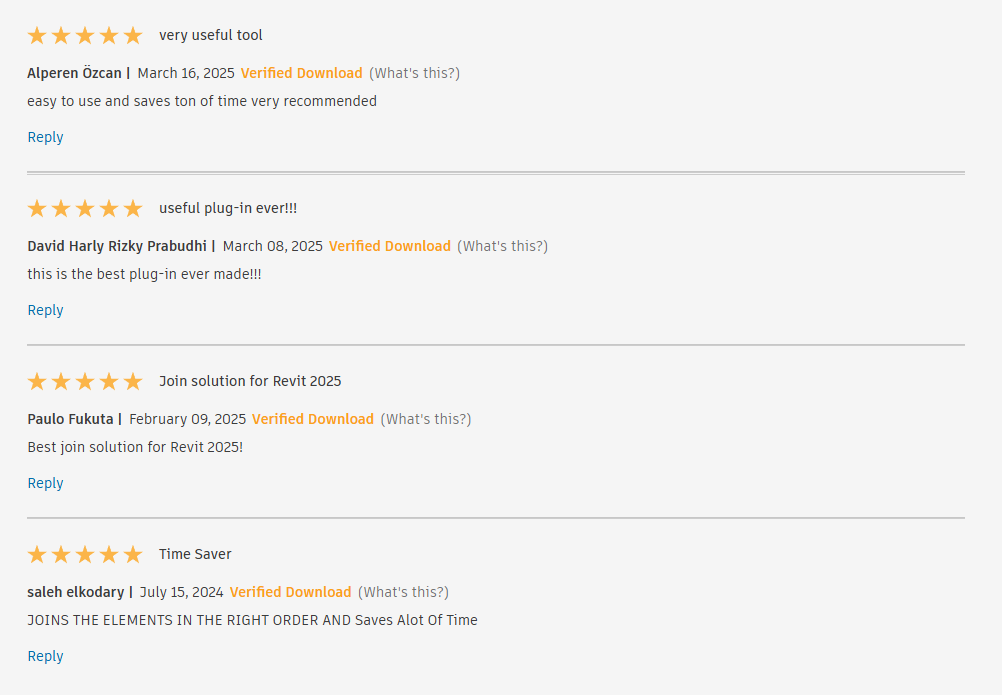
This impact on productivity wasn’t only in my own use cases. Several users report that Easy Join is the best solution for joining elements and that using it saves them a lot of time. That feedback reinforces that Easy Join brings real value to its users.
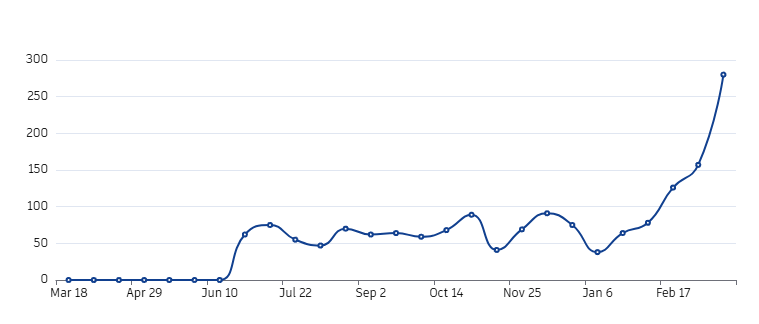
With the software’s success, Easy Join was recently promoted to the homepage of the Autodesk store, dramatically increasing the app’s reach, as you can see in the graph below.
The future of automation in BIM
This project showed me how much a simple automation can improve the use of Revit and of BIM as a whole. This particular solution could be easily integrated into Revit itself (which would be unheard of, since this problem has persisted for decades), and there are still many processes that can be optimized — and I’m excited to keep exploring these possibilities.
I recently submitted a new version to the store, with the ability to join more building elements through an advanced configuration; it is currently under review and approval. Now, only time will tell what my next adventure in the BIM world will be.
I want to hear your opinion!
Have you ever faced this problem in Revit? How do you usually solve it? Do you think tools like this can make life easier for architecture and engineering professionals? Let’s talk in the comments!